Showing posts with label REST. Show all posts

Wednesday, September 19, 2018

Spelunking your Splunk – Part V (Splunk Stats)

By Tony Lee

Welcome to the fifth article of the Spelunking your Splunk series, all designed to help you understand your Splunk environment at a quick glance.  Here is a quick recap of the previous articles:


This article focuses on understanding your Splunk environment at a high-level.  Have you ever wondered the following?


  • How many events ingested over a user-defined time period
  • How that equates to events per second (EPS)
  • The distinct host count
  • Number of indexes with data
  • Number of sourcetypes
  • Number of sources
  • Visually what the data ingest looks like by total event count and by index

This dashboard will give it to you and do it fast!  As a bonus we will provide the dashboard code at the end of the article.

Figure 1:  Splunk Stats dashboard


Finding detailed index information quickly

There are at least two places within Splunk to discover index information. The first uses a RESTful call and provides detailed information about indexes. The second requires more calculation and is less efficient. For this exercise, lets try copying and pasting the following RESTful search into your Splunk search bar to see what data is returned:

| rest /services/data/indexes-extended


Figure 2:  Results of the restful search (remember to scroll right)


| dbinspect index=*

Figure 3:  Column headers from dbinspect (remember to scroll right)

Now try the following which combines both (thank you Splunk!):

| dbinspect index=* cached=t
| where NOT match(index, "^_")
| stats max(rawSize) AS raw_size max(eventCount) AS event_count BY bucketId, index
| stats sum(raw_size) AS raw_size sum(event_count) AS event_count dc(bucketId) AS buckets BY index
| eval raw_size_gb = round(raw_size / 1024 / 1024 / 1024 , 2) | fields index raw_size_gb event_count buckets
| join type=outer index [| rest /services/data/indexes-extended 
| table title maxTime minTime frozenTimePeriodInSecs
| eval minTime = case(minTime >= "0", minTime)
| stats max(maxTime) AS maxTime min(minTime) AS minTime max(frozenTimePeriodInSecs) AS retention BY title
| eval maxTime = replace(maxTime, "T", " "), maxTime = replace(maxTime, "\+0000", ""), minTime = replace(minTime, "T", " "), minTime = replace(minTime, "\+0000", ""), retention = round(retention / 86400, 0)." Days" 
| rename title AS index] | fields index raw_size_gb event_count buckets  minTime maxTime retention
            | rename raw_size_gb AS "Index Size (GB)" event_count AS "Total Event Count" buckets AS "Total Bucket Count" minTime AS "Earliest Event"  maxTime AS "Latest Event"   retention AS Retention


Now that you understand the basics, the sky is the limit.  :-)

Finding source, sourcetype, and host data quickly 

You may remember from the first article of this series (Spelunking your Splunk Part I (Exploring Your Data) called tstats.  In a nutshell, tstats can perform statistical queries on indexed fields—very very quickly.  These indexed fields by default are index, source, sourcetype, and host.  It just so happens that these are the fields that we need to understand the environment.  Best of all, even on an underpowered environment or one with lots of data ingested per day, these commands will still outperform the rest of your typical searches even over long periods of time.  This works great for our dashboard!


Conclusion

Splunk provides decent visibility into various features within Monitoring Console / DMC (Distributed management console), but we found this flexible and customizable dashboard to be quite helpful for gaining additional insight.  We hope this helps you too.  Enjoy!


Dashboard XML code


Below is the dashboard code needed to enumerate your Splunk stats.  Feel free to modify the dashboard as needed:

<form>
  <label>Splunk Stats</label>
  <fieldset submitButton="true" autoRun="true">
    <input type="time" token="time">
      <label>Time Range Selector</label>
      <default>
        <earliest>-7d@h</earliest>
        <latest>now</latest>
      </default>
    </input>
  </fieldset>
  <row>
    <panel>
      <single>
        <title>Distinct Events</title>
        <search>
          <query>| tstats count where index=*</query>
          <earliest>$time.earliest$</earliest>
          <latest>$time.latest$</latest>
          <sampleRatio>1</sampleRatio>
        </search>
        <option name="drilldown">none</option>
        <option name="refresh.display">progressbar</option>
      </single>
    </panel>
    <panel>
      <single>
        <title>Events Per Second (EPS)</title>
        <search>
          <query>| tstats count where index=* | addinfo | eval diff = info_max_time - info_min_time | eval EPS = count / diff | table EPS</query>
          <earliest>$time.earliest$</earliest>
          <latest>$time.latest$</latest>
        </search>
        <option name="drilldown">none</option>
      </single>
    </panel>
    <panel>
      <single>
        <title>Distinct Hosts</title>
        <search>
          <query>| tstats dc(host) where index=*</query>
          <earliest>$time.earliest$</earliest>
          <latest>$time.latest$</latest>
          <sampleRatio>1</sampleRatio>
        </search>
        <option name="drilldown">none</option>
        <option name="refresh.display">progressbar</option>
      </single>
    </panel>
    <panel>
      <single>
        <title>Distinct Indexes with Data</title>
        <search>
          <query>| dbinspect index=* cached=t
| where NOT match(index, "^_")
| stats max(rawSize) AS raw_size max(eventCount) AS event_count BY bucketId, index
| stats sum(raw_size) AS raw_size sum(event_count) AS event_count dc(bucketId) AS buckets BY index
| eval raw_size_gb = round(raw_size / 1024 / 1024 / 1024 , 2) | fields index raw_size_gb event_count buckets
| join type=outer index [| rest /services/data/indexes-extended 
| table title maxTime minTime frozenTimePeriodInSecs
| eval minTime = case(minTime &gt;= "0", minTime)
| stats max(maxTime) AS maxTime min(minTime) AS minTime max(frozenTimePeriodInSecs) AS retention BY title
| eval maxTime = replace(maxTime, "T", " "), maxTime = replace(maxTime, "\+0000", ""), minTime = replace(minTime, "T", " "), minTime = replace(minTime, "\+0000", ""), retention = round(retention / 86400, 0)." Days" 
| rename title AS index] | fields index raw_size_gb event_count buckets  minTime maxTime retention
            | rename raw_size_gb AS "Index Size (GB)" event_count AS "Total Event Count" buckets AS "Total Bucket Count" minTime AS "Earliest Event"  maxTime AS "Latest Event"   retention AS Retention | stats count</query>
          <earliest>0</earliest>
          <latest></latest>
          <sampleRatio>1</sampleRatio>
        </search>
        <option name="drilldown">none</option>
        <option name="refresh.display">progressbar</option>
      </single>
    </panel>
    <panel>
      <single>
        <title>Distinct Sourcetypes</title>
        <search>
          <query>| tstats dc(sourcetype) where index=*</query>
          <earliest>$time.earliest$</earliest>
          <latest>$time.latest$</latest>
          <sampleRatio>1</sampleRatio>
        </search>
        <option name="drilldown">none</option>
        <option name="refresh.display">progressbar</option>
      </single>
    </panel>
    <panel>
      <single>
        <title>Distinct Sources</title>
        <search>
          <query>| tstats dc(source) where index=*</query>
          <earliest>$time.earliest$</earliest>
          <latest>$time.latest$</latest>
          <sampleRatio>1</sampleRatio>
        </search>
        <option name="drilldown">none</option>
        <option name="refresh.display">progressbar</option>
      </single>
    </panel>
  </row>
  <row>
    <panel>
      <chart>
        <title>Total Event Count Over Time</title>
        <search>
          <query>| tstats prestats=t count where index=* by _time | timechart  count</query>
          <earliest>$time.earliest$</earliest>
          <latest>$time.latest$</latest>
        </search>
        <option name="charting.chart">area</option>
        <option name="charting.drilldown">none</option>
        <option name="refresh.display">progressbar</option>
      </chart>
    </panel>
    <panel>
      <chart>
        <title>Event Count by Index Over Time</title>
        <search>
          <query>| tstats prestats=t count where index=* by index, _time | timechart count by index</query>
          <earliest>$time.earliest$</earliest>
          <latest>$time.latest$</latest>
        </search>
        <option name="charting.chart">area</option>
        <option name="charting.drilldown">none</option>
        <option name="refresh.display">progressbar</option>
      </chart>
    </panel>
  </row>
  <row>
    <panel>
      <table>
        <title>Indexes with Data</title>
        <search>
          <query>| dbinspect index=* cached=t
| where NOT match(index, "^_")
| stats max(rawSize) AS raw_size max(eventCount) AS event_count BY bucketId, index
| stats sum(raw_size) AS raw_size sum(event_count) AS event_count dc(bucketId) AS buckets BY index
| eval raw_size_gb = round(raw_size / 1024 / 1024 / 1024 , 2) | fields index raw_size_gb event_count buckets
| join type=outer index [| rest /services/data/indexes-extended 
| table title maxTime minTime frozenTimePeriodInSecs
| eval minTime = case(minTime &gt;= "0", minTime)
| stats max(maxTime) AS maxTime min(minTime) AS minTime max(frozenTimePeriodInSecs) AS retention BY title
| eval maxTime = replace(maxTime, "T", " "), maxTime = replace(maxTime, "\+0000", ""), minTime = replace(minTime, "T", " "), minTime = replace(minTime, "\+0000", ""), retention = round(retention / 86400, 0)." Days" 
| rename title AS index] | fields index raw_size_gb event_count buckets  minTime maxTime retention
            | rename raw_size_gb AS "Index Size (GB)" event_count AS "Total Event Count" buckets AS "Total Bucket Count" minTime AS "Earliest Event"  maxTime AS "Latest Event"   retention AS Retention</query>
          <earliest>0</earliest>
          <latest></latest>
        </search>
        <option name="drilldown">none</option>
        <option name="refresh.display">progressbar</option>
      </table>
    </panel>
  </row>
</form>

Sunday, July 8, 2018

Spelunking your Splunk – Part IV (User Metrics)

By Tony Lee

Welcome to the fourth article of the Spelunking your Splunk series, all designed to help you understand your Splunk environment at a quick glance.  Here is a quick recap of the previous articles:


This article will focus on understanding the users within the environment--even when spread over a search head cluster. We will show you that it is possible to check the amount of concurrent Splunk users, how much they are searching, successful and failed logins and aged accounts. This information is useful not only from an accountability perspective, but also from a resource perspective. When a search head (or cluster) becomes overloaded with users, it may be a good time to consider horizontal scaling.

Finding and understanding user information

There are at least two places within Splunk to discover user information. The first requires a RESTful call and provides information about authenticated users. The second is a search against the _audit index filtering on user activity. Try copying and pasting the following two searches into your Splunk search bar one at a time to see what data is returned:

| rest /services/authentication/httpauth-tokens splunk_server=*

Figure 1:  Current authenticated users via httpauth-tokens


index=_audit user=*

Figure 2:  _audit index with a focus on user activity

Now that you understand the basics, the sky is the limit. You can audit each user or display the statistics for all users. Take a look at our dashboard below to see what is possible. If you find it useful, we provide the code for it at the bottom of this article. Give it a try and let us know what you think.

Figure 3:  User Metrics dashboard with all panels


Conclusion

Splunk provides decent visibility into various features within Monitoring Console / DMC (Distributed management console), but we found this flexible and customizable dashboard to be quite helpful for monitoring gaining additional insight.  We hope this helps you too.  Enjoy!


Dashboard XML code


Below is the dashboard code needed to enumerate your user metrics.  Feel free to modify the dashboard as needed:

<form>
  <label>User Metrics</label>
  <description>Displays Interesting Usage Metrics</description>
  <!-- Add time range picker -->
  <fieldset autoRun="True">
    <input type="time" searchWhenChanged="true">
      <default>
        <earliestTime>-24h@h</earliestTime>
        <latestTime>now</latestTime>
      </default>
    </input>
    <input type="text" token="wild">
      <label>Search</label>
      <default>*</default>
      <suffix/>
    </input>
  </fieldset>
  <row>
    <panel>
      <chart>
        <title>Current Active Users</title>
        <search>
          <query>| rest /services/authentication/httpauth-tokens splunk_server=* | where NOT userName="splunk-system-user" | stats dc(userName) AS "Total Users"</query>
          <earliest>$earliest$</earliest>
          <latest>$latest$</latest>
        </search>
        <option name="charting.axisLabelsX.majorLabelStyle.overflowMode">ellipsisNone</option>
        <option name="charting.axisLabelsX.majorLabelStyle.rotation">0</option>
        <option name="charting.axisTitleX.visibility">visible</option>
        <option name="charting.axisTitleY.visibility">visible</option>
        <option name="charting.axisTitleY2.visibility">visible</option>
        <option name="charting.axisX.scale">linear</option>
        <option name="charting.axisY.scale">linear</option>
        <option name="charting.axisY2.enabled">false</option>
        <option name="charting.axisY2.scale">inherit</option>
        <option name="charting.chart">fillerGauge</option>
        <option name="charting.chart.nullValueMode">gaps</option>
        <option name="charting.chart.sliceCollapsingThreshold">0.01</option>
        <option name="charting.chart.stackMode">default</option>
        <option name="charting.chart.style">shiny</option>
        <option name="charting.drilldown">all</option>
        <option name="charting.layout.splitSeries">0</option>
        <option name="charting.legend.labelStyle.overflowMode">ellipsisMiddle</option>
        <option name="charting.legend.placement">right</option>
      </chart>
    </panel>
    <panel>
      <table>
        <title>Current Logged in Users</title>
        <search>
          <query>| rest /services/authentication/httpauth-tokens splunk_server=* | where NOT userName ="splunk-system-user" | stats max(timeAccessed) AS "Latest Activity" by userName | rename userName AS "User" | sort -"Latest Activity"</query>
          <earliest>$earliest$</earliest>
          <latest>$latest$</latest>
        </search>
        <option name="count">10</option>
        <option name="dataOverlayMode">none</option>
        <option name="drilldown">cell</option>
        <option name="rowNumbers">false</option>
        <option name="wrap">true</option>
      </table>
    </panel>
    <panel>
      <table>
        <title>Total Searches</title>
        <search>
          <query>index=_audit user=* (action="search" AND info="granted") | where NOT user ="splunk-system-user" | stats count(action) AS Searches by user | sort - Searches</query>
          <earliest>$earliest$</earliest>
          <latest>$latest$</latest>
        </search>
        <option name="count">10</option>
        <option name="dataOverlayMode">none</option>
        <option name="drilldown">cell</option>
        <option name="rowNumbers">false</option>
        <option name="wrap">true</option>
      </table>
    </panel>
  </row>
  <row>
    <panel>
      <table>
        <title>Successful Logins</title>
        <search>
          <query>index=_audit user=* (action="login attempt" AND info="succeeded") | stats count(action) AS Logins by user | rename user AS User, Logins AS Successes | sort - Successes</query>
          <earliest>$earliest$</earliest>
          <latest>$latest$</latest>
        </search>
        <option name="count">10</option>
        <option name="dataOverlayMode">none</option>
        <option name="drilldown">cell</option>
        <option name="rowNumbers">false</option>
        <option name="wrap">true</option>
      </table>
    </panel>
    <panel>
      <table>
        <title>Failed Logins</title>
        <search>
          <query>index=_audit user=* (action="login attempt" AND info="failed") | stats count(action) AS Logins by user | rename user AS User, Logins AS Failures | sort - Failures</query>
          <earliest>0</earliest>
          <latest></latest>
        </search>
        <option name="count">10</option>
        <option name="dataOverlayMode">none</option>
        <option name="drilldown">cell</option>
        <option name="rowNumbers">false</option>
        <option name="wrap">true</option>
      </table>
    </panel>
    <panel>
      <table>
        <title>Aged Accounts (15 days or older)</title>
        <search>
          <query>index=_audit user=* (action="login attempt" AND info="succeeded") | dedup user | eval age_days=round((now()-_time)/(60*60*24)) | where age_days &gt;= 15 | eval time=strftime(_time, "%m/%d/%Y %H:%M:%S") | table user, time, age_days | sort -age_days</query>
          <earliest>-15d@d</earliest>
          <latest>now</latest>
        </search>
        <option name="wrap">true</option>
        <option name="rowNumbers">false</option>
        <option name="dataOverlayMode">none</option>
        <option name="drilldown">cell</option>
        <option name="count">10</option>
      </table>
    </panel>
  </row>
</form>

Wednesday, November 22, 2017

Spelunking your Splunk – Part II (Disk Usage)

By Tony Lee

In our first article of the series, Spelunking your Splunk Part I (Exploring Your Data), we looked at a clever dashboard that can be used to quickly understand the indexes, sources, sourcetypes, and hosts in any Splunk environment.  Now we will examine disk usage!

You may know this already--Splunk stores data on indexers. But have you ever wanted to visually see indexer capacity?  Or in a distributed environment, have you ever wondered how well the data is distributed across the indexers?  We have a solution for both and will provide the code at the bottom of the article.

Finding disk usage information

There are a number of ways to query disk utilization within Splunk.  For example, you could create scripted input that makes a call to the operating system, but Splunk makes it even simpler than that...  Try copying and pasting this RESTful query into the search bar:

| rest splunk_server=* /services/server/status/partitions-space | eval usage = round((capacity - free) / 1024, 2) | eval capacity = round(capacity / 1024, 2) | eval compare_usage = usage." / ".capacity | eval pct_usage = round(usage / capacity * 100, 2)  | table updated, splunk_server, mount_point, fs_type, capacity, compare_usage, pct_usage | rename mount_point as "Mount Point", fs_type as "File System Type", compare_usage as "Disk Usage (GB)", capacity as "Capacity (GB)", pct_usage as "Disk Usage (%)" | sort splunk_server


This should result in something that looks like the following screenshot which provides information such as the server name, mount point, file system type, drive capacity, disk usage, and percentage of disk usage. If you receive information from non-indexers or mount points that are not related to your actual indexer mount points, you can either ignore them or filter them out of the search.


Figure 1:  The search that starts it all

Adding a gauge

This is pretty interesting information, especially in a distributed environment, but let's take it up a notch so we can see a visual representation.  The dashboard code at the bottom of the page will give you the basic building blocks to customize gauges on your disk usage page.

Figure 2:  Adding a filler gauge for each indexer

Note:  For the gauges, you should change two values:  splunk_server to match the value in the splunk_server column and mount_point to match the value in the Mount Point column in our original search.

For environments with clustered indexers, just add a gauge for each indexer.  The end result should look something like the following:

Figure 3:  Filler gauges across the index cluster

In this example, it is very easy to see one indexer that is not properly load balanced. This dashboard can also be used to trigger alerts based on disk usage.

Conclusion

Splunk provides good visibility into indexer health via the Monitoring Console / DMC (Distributed management console), but we found this visual representation quite helpful for monitoring disk usage and indexer cluster load balancing.   We hope this helps you too.


Dashboard XML code is below:

Below is the dashboard code needed to enumerate your servers and mount point and to create one gauge.  Now just copy the gauge code for as many gauges as needed:

<dashboard stylesheet="custom.css">
  <label>Disk Usage</label>
  <row>
    <panel>
      <chart>
        <title>Indexer-1</title>
        <search>
          <query>| rest splunk_server=* /services/server/status/partitions-space | search splunk_server=server_name_here mount_point="/" | eval usage = round((capacity - free) / 1024, 2) | eval capacity = round(capacity / 1024, 2) | eval compare_usage = usage." / ".capacity | eval pct_usage = round(usage / capacity * 100, 2)  | table pct_usage | rename mount_point as "Mount Point", fs_type as "File System Type", compare_usage as "Disk Usage (GB)", capacity as "Capacity (GB)", pct_usage as "Disk Usage (%)" | sort splunk_server</query>
          <earliest>0</earliest>
          <latest></latest>
        </search>
        <option name="charting.axisLabelsX.majorLabelStyle.overflowMode">ellipsisNone</option>
        <option name="charting.axisLabelsX.majorLabelStyle.rotation">0</option>
        <option name="charting.axisTitleX.visibility">visible</option>
        <option name="charting.axisTitleY.visibility">visible</option>
        <option name="charting.axisTitleY2.visibility">visible</option>
        <option name="charting.axisX.scale">linear</option>
        <option name="charting.axisY.scale">linear</option>
        <option name="charting.axisY2.enabled">0</option>
        <option name="charting.axisY2.scale">inherit</option>
        <option name="charting.chart">fillerGauge</option>
        <option name="charting.chart.bubbleMaximumSize">50</option>
        <option name="charting.chart.bubbleMinimumSize">10</option>
        <option name="charting.chart.bubbleSizeBy">area</option>
        <option name="charting.chart.nullValueMode">gaps</option>
        <option name="charting.chart.rangeValues">[0,50,75,100]</option>
        <option name="charting.chart.showDataLabels">none</option>
        <option name="charting.chart.sliceCollapsingThreshold">0.01</option>
        <option name="charting.chart.stackMode">default</option>
        <option name="charting.chart.style">shiny</option>
        <option name="charting.drilldown">all</option>
        <option name="charting.gaugeColors">["0x84E900","0xFFE800","0xBF3030"]</option>
        <option name="charting.layout.splitSeries">0</option>
        <option name="charting.layout.splitSeries.allowIndependentYRanges">0</option>
        <option name="charting.legend.labelStyle.overflowMode">ellipsisMiddle</option>
        <option name="charting.legend.placement">right</option>
      </chart>
    </panel>
  </row>
  <row>
    <panel>
      <table>
        <search>
          <query>| rest splunk_server=* /services/server/status/partitions-space | eval usage = round((capacity - free) / 1024, 2) | eval capacity = round(capacity / 1024, 2) | eval compare_usage = usage." / ".capacity | eval pct_usage = round(usage / capacity * 100, 2)  | table updated, splunk_server, mount_point, fs_type, capacity, compare_usage, pct_usage | rename mount_point as "Mount Point", fs_type as "File System Type", compare_usage as "Disk Usage (GB)", capacity as "Capacity (GB)", pct_usage as "Disk Usage (%)" | sort splunk_server</query>
          <earliest>-15m</earliest>
          <latest>now</latest>
        </search>
        <option name="count">10</option>
        <option name="dataOverlayMode">none</option>
        <option name="drilldown">cell</option>
        <option name="rowNumbers">false</option>
        <option name="wrap">true</option>
      </table>
    </panel>
  </row>
</dashboard>

Monday, June 6, 2016

Event acknowlegement using Splunk KV Store

By Tony Lee


Introduction

Whether you use Splunk for operations, security, or any other purpose--it can be helpful to be able to acknowledge events and add notes.  Splunk provides a few different methods to accomplish this task:  using an external database, writing to files, or the App Key Value Store (aka KV Store).  The problem with using an external database is that it requires another system to provision and protect and can add unwanted complexity.  Writing to files can be problematic in a distributed Splunk architecture that may use clustered or non-clustered components.  The last option is the Splunk KV Store which appears to be the current recommendation from Splunk, but this can also appear complex at first--thus we will do our best to break it down in this article.

In the most basic explanation, the KV Store allows users to write information to Splunk and recall it at a later time.  Furthermore, KV Store lookups can be used to augment your event data by mapping event fields to fields assigned in your App Key Value Store collections. KV Store lookups can be invoked through REST endpoints or by using the following SPL search commands: lookup, inputlookup, and outputlookup.  REST commands can require additional permissions, so this article will look at possibilities using the search commands.

References

Before we get started, we will list some references that helped in our understanding of the Splunk KV Store:
http://docs.splunk.com/Documentation/Splunk/latest/Knowledge/ConfigureKVstorelookups
http://docs.splunk.com/Documentation/Splunk/latest/SearchReference/Outputlookup
http://docs.splunk.com/Documentation/Splunk/latest/SearchReference/Inputlookup
http://docs.splunk.com/Documentation/Splunk/latest/SearchReference/Lookup

Deciding on the fields

For this example, we wanted to add a couple of fields to augment our event data.  Namely an acknowledgement field (we will call this Ack) and a notes field (we will call this Notes).  We will match the unique event id field with a field that is also called id.

So, in summary, we have id, Ack, and Notes.  Splunk also uses an internal _key field, but we will not reference this directly in our efforts.

Getting started

Per our references above on configuring KV Store lookups, we will need two supporting configurations:

  1. A collections.conf file specifying our collection name
  2. A stanza in transforms.conf to specify kvstore parameters

cat collections.conf 
#
# Splunk app KV Store collection file
#
[acknotescoll]


head transforms.conf 

[acknotes]
external_type = kvstore
collection = acknotescoll
fields_list = _key, id, Ack, Notes

Interacting with KV Store using search

The reference links provide helpful examples, but they do not provide everything necessary.  Some of this was discovered through a bit of trial and error.  Especially the flags and resulting behavior.  We list below the major actions that can be taken and the search commands necessary to perform those actions: 

Write new record:
| localop | stats count | eval id=101 | eval Ack="Y" | eval Notes="These are notes for event 101"| outputlookup acknotes append=True

Note:  Without append=True, the entire KV Store is erased and only this record will be present


Update a record (only works if the record already exists):
| inputlookup acknotes where id="100" | eval Ack="N" | eval Notes="We can choose not to ack event 100" | outputlookup acknotes append=True

Note:  Without append=True, the entire KV Store is erased and only this record will be present


Read all records:
| inputlookup acknotes


Read a record (A new search):
| inputlookup acknotes where id="$id$" | table _key, id, Ack, Notes


Read a record (combined with another search):
<search> | lookup acknotes where id="100" | table _key, id, Ack, Notes

Limitation and work around

Unfortunately, it does not look like Splunk has a single search command/method to update a record, but create the record if it does not already exist.  I may be mistaken about this and hope that I am missing some clever flag, so feel free to leave comments in the feedback section below.  To get around this limitation, we first created a "simple" search command to check for the existence of a record.

Determine if record exists:
| inputlookup acknotes where id="108" | appendpipe [stats count | where count==0] | eval execute=if(isnull(id),"Record Does Not Exist","Record Exists!") | table execute

Example of a record that exists


Example of record that does not exist


Conditional update:
Now that we can determine if a record exists and we know how to create a new record and update an existing record, we can combine all three to modify and/or create entries depending on their existence.

<query>| inputlookup acknotes where id="$id$" | appendpipe [stats count | where count==0] | eval execute=if(isnull(id),"| localop | stats count | eval id=$id$ | eval Ack=\"$Ack$\" | eval Notes=\"$Note$\" | outputlookup acknotes append=True","| inputlookup acknotes where id=\"$id$\" | eval Ack=\"$Ack$\" | eval Notes=\"$Note$\" | outputlookup acknotes append=True") | eval kvid=$id$ | eval kvack="$Ack$" | eval kvnote="$Note$" | eval Submit="Click me to Submit" | table kvid, kvack, kvnote, execute, Submit</query>

Results

These are just some examples of what is possible.

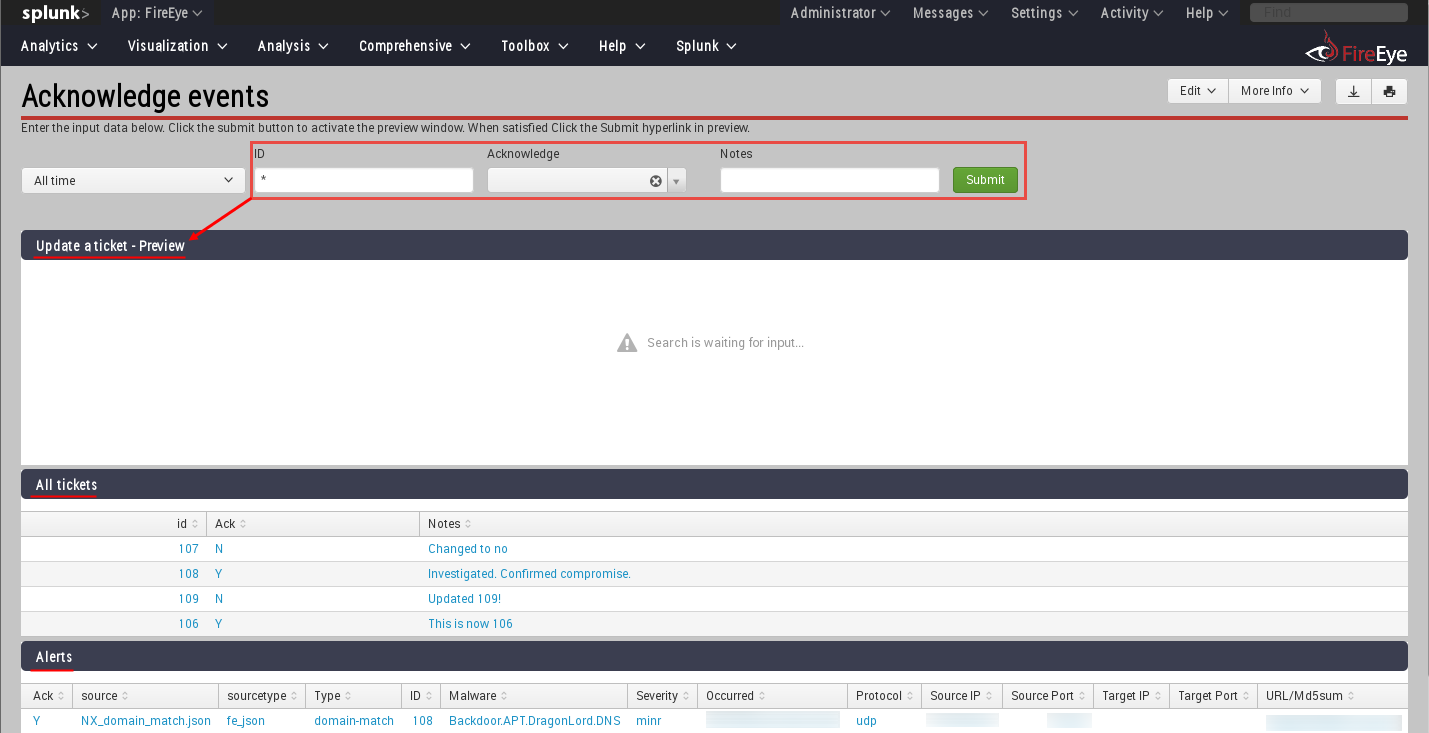
You could create an event acknowledgement page

Event acknowledgement page

Once the fields are filled in at the top with the event id, acknowledgement, and notes, it could create the command to either update or add a new entry to the KV Store.  Clicking the Submit hyperlink will actually run that command and modify the KV Store.

Event acknowledgement page filled out and waiting for click to submit

Once the data is populated in the KV Store, these records can be mapped to the original events to add this data for analysts.

Original event data with KV Store augmentation

Conclusion

Hopefully this helps expose some of the interesting possibilities of using Splunk's KV Store to create an event acknowledgement/ticketing system using search operations.  Feel free to leave feedback below--especially if there is an easier search operation for updating a record and adding a new one if it does not already exist.  Thanks for reading.