Showing posts with label ePO. Show all posts

Saturday, January 7, 2017

Forensic Investigator Splunk App - Version 1.1.8

By Tony Lee and Kyle Champlin

The latest version of the Forensic Investigator app (version 1.1.8) is now available. We will only cover three major changes, but here are the rest of the details:
  • Added option to hide the MIR menus via the setup screen
  • Added proxy support to setup screen
  • Made vtLookup proxy aware
  • Made vtLookup accept and use non-default API key
  • Added CyberChef (En/Decoder -> CyberChef) - Big thanks to GCHQ for the awesome tool!
  • Added ePO Connector to control McAfee ePolicy Orchestrator
    • Requires editing bin\epoconnector.py and adding ePO IP, port, username, and password

1.  CyberChef

The folks over at GCHQ created an awesome encoding/decoding tool called CyberChef which is available here: https://gchq.github.io/CyberChef/. Even more impressive, it is a stand-alone client-side html page which was released under the Apache License version 2.0. We integrated it into the Forensic Investigator app as a useful component that can be utilized even on closed networks. Huge thanks to the developers at GCHQ.

CyberChef integrated into the Forensic Investigator App

2.  ePO Connector

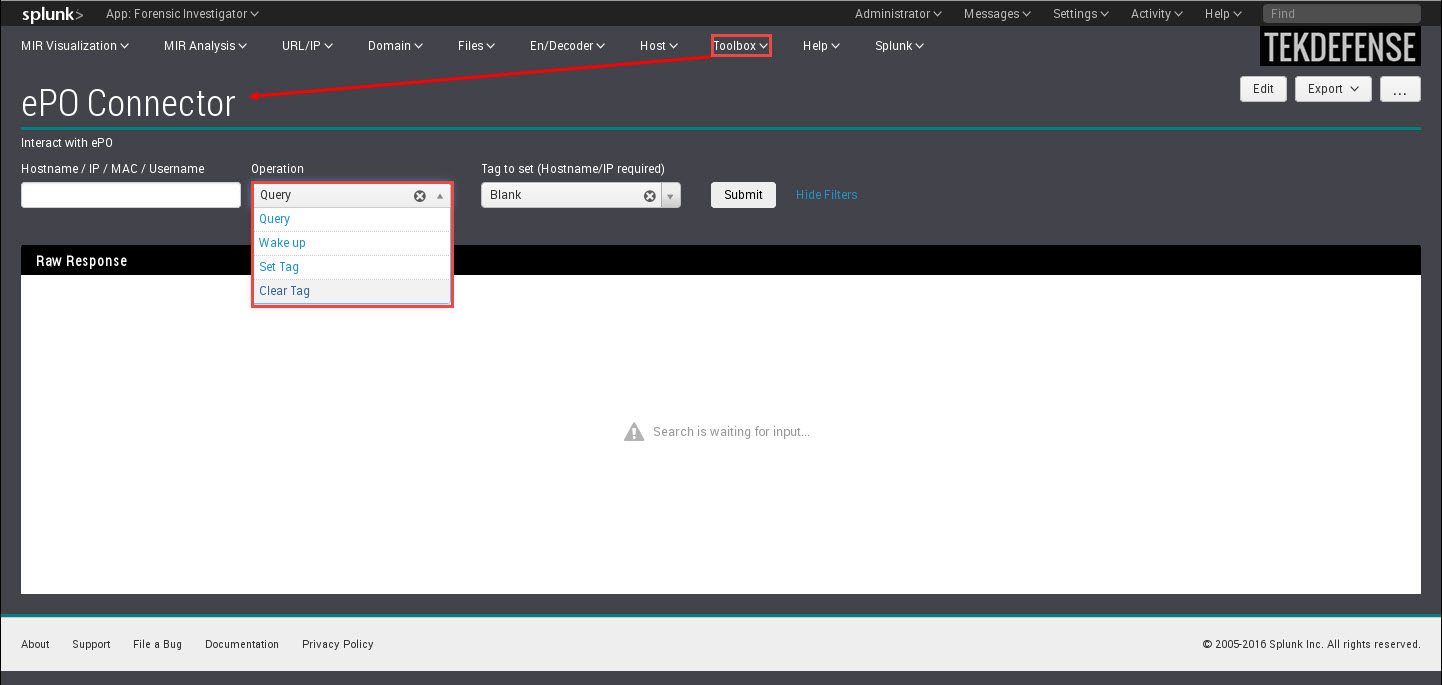
The Forensic Investigator ePO connector can be used to integrate Splunk and McAfee's ePolicy Orchestrator (ePO). This dashboard can task ePO via its API to do the following:
  • Query
  • Wake up
  • Set tag
  • Clear tag
This allows users to query for hosts using a hostname, IP addrses, MAC address, or even username. Then users can set a tag, wake the host up, and even clear a tag.  This feature is covered in more depth here:  http://securitysynapse.blogspot.com/2016/12/splunk-and-mcafee-epo-integration-part-ii.html

ePO connector feature

3.  Proxy Awareness

You spoke and we listened. The Virus Total Lookup feature in the app is now proxy aware. If this feature works well, we will make the rest of the app proxy aware too. To enable the proxy settings, use the setup screen (Help -> Configure App) and enter the required data found in the screenshot.

Proxy setup
Please let us know if you run into any issues with the proxy setup or if it seems to be working well for you.  We will use this information to tweak the setup screen in the next version of the app.

Conclusion 

We enjoy the feedback on the application--both good and bad, so please keep it coming. Let us know how you are using the application and how we can make it better.  Enjoy. :-)

Monday, December 26, 2016

Splunk and McAfee ePO Integration – Part II

By Tony Lee

In our previous article we outlined one method to integrate McAfee's ePolicy Orchestrator (ePO) with Splunk’s flexible Workflow actions. This allows SOC analysts to task ePO directly from Splunk. In this article, we will highlight a different and potentially more user friendly method. For convenience we have integrated this dashboard into version 1.1.8 of the Forensic Investigator app (Toolbox -> ePO Connector).


Forensic Investigator app ePO connector tool

As with the previous article, all that’s needed is the following:
  • Administrator access to Splunk
  • URL, port, and service account (with administrator rights) to ePO

Testing the ePO API and credentials

It still may be useful to first ensure that our ePO credentials, URL and port are correct. Using the curl command, we will send a few simple queries. If all is well, the command found below will result in a list of supported Web API commands.

curl -v -k -u <User>:<Password> "https://<EPOServer>:<EPOPort>/remote/core.help

If this failed, then check your credentials, IP, port, and connection. Once the command works, try the following to search for a host or user:

curl -v -k -u <User>:<Password> "https://<EPOServer>:<EPOPort>/remote/system.find?searchText=<hostname/IP/MAC/User>

Splunk Integration

The Forensic Investigator ePO connector dashboard contains the following ePO capabilities:

  • Query
  • Wake up
  • Set tag
  • Clear tag

This allows users to query for hosts using a hostname, IP addrses, MAC address, or even username. Then users can set a tag, wake the host up, and even clear a tag.

Setup

1)  Download and install
Before this integration is possible, first install the Forensic Investigator app (version 1.1.8 or later).

2)  CLI edit
Then edit the following file:

$SPLUNK_HOME/etc/apps/ForensicInvestigator/bin/epoconnector.py

Set the following:  IP, port, username, and password

theurl = 'https://<IP>:8443/remote/'
username = '<username>'
password = '<password>'

3)  Web UI dashboard edit
The dashboard is accessible via Toolbox --> ePO Connector.  There is a Quarantine tag present by default, but others can be added via the Splunk UI by selecting the edit button on the dashboard.


Lingering concerns

Using this integration method, there are a few remaining concerns:

  • The ePO password is contained in the epoconnector.py python script
    • Fortunately, this is only exposed to Splunk admins.
    • Let us know if you have another solution.  :-)
  • ePO API authentication uses Base64.  The resulting URL can be modified and it will still be authenticated and will issue commands to ePO.
    • SSL should be used with the ePO API to protect the communications
    • Limit this dashboard to only trusted users.
  • Leaving the system.find searchText parameter blank returns everything in ePO
    • ePO seems resilient even to large queries.  We also filtered out blank queries in the python script.
 

Conclusion 

This second ePO integration method should be quite user friendly and can be restricted to those who only need access to this dashboard. It could also be used in conjunction with out previous integration method too. Enjoy!

Sunday, December 18, 2016

Splunk and McAfee ePO Integration – Part I

By Tony Lee

Have you ever wanted to task McAfee ePolicy Orchestrator (ePO) right from Splunk? Lucky for us, ePO has robust Web API scripting capabilities and is well-documented in a reference guide found here:

Combine this with Splunk’s flexible Workflow actions and we have the basic building blocks to allow SOC analysts to task ePO. All that’s needed is the following:
  • Administrator access to Splunk
  • URL, port, and service account (with administrator rights) to ePO

Testing the ePO API and credentials

In order to start the integration, let’s first ensure that our credentials, URL and port are correct. Using the curl command, we will send a few simple queries. If all is well, the command found below will result in a list of supported Web API commands.

curl -v -k -u <User>:<Password> "https://<EPOServer>:<EPOPort>/remote/core.help

If this failed, then check your credentials, IP, port, and connection. Once the command works, try the following to search for a host or user:

curl -v -k -u <User>:<Password> "https://<EPOServer>:<EPOPort>/remote/system.find?searchText=<hostname/IP/MAC/User>

Pro Tips:
  • Do not leave the searchText parameter blank or it will return everything in ePO.
  • Machine readable output such as XML or JSON may be desired. 

To return XML or JSON, use the :output parameter as shown in the example below:

curl -v -k -u <User>:<Password> "https://<EPOServer>:<EPOPort>/remote/system.find?:output=json&searchText=<hostname/IP/MAC/User>

Our use case

There are many ways in which a SOC could benefit from Splunk/ePO integration. However, in this use case, we have ePO configured to perform automated actions (such as run a full AV scan) when certain tags are applied to hosts. Now wouldn’t it be convenient if we could tell Splunk to have ePO apply the tag to kick off the actions? How about clearing tags?  Both actions are exposed through ePO’s API:

Apply a tag: /remote/system.applyTag?names=<Host>&tagName=FullAVScan

Clear a tag: /remote/system.clearTag?names=<Host>&tagName=FullAVScan

Splunk Integration

One possible integration leverages Splunk’s Workflow Actions to issue these web API commands to ePO. This allows the analyst to pivot from the Event screen in a search using the Event Actions button as shown in the screenshot below:
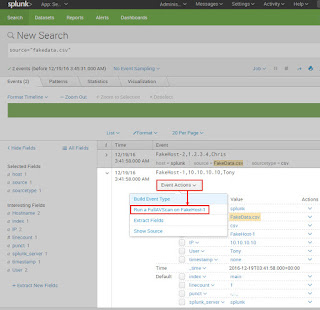


Splunk’s Workflow actions can be setup using the following:
Settings -> Fields -> Workflow Actions -> Add New

(Note:  This example uses the field Hostname field to identify the asset, change this to match your field name):

Name:  FullAVScan
Label:  Run a FullAVScan on $Hostname$
Apply only to the following fields:  Hostname
Apply only to the following event types:  left blank 
Show action in: Both
Action type:  link
URI:  https://<User>:<Password> @<EPOServer>:<EPOport>/remote/system.applyTag?names=$Hostname$&tagName=FullAVScan
Open link in:  New window
Link method:  get

Note:  You may need to restart Splunk to make sure the Workflow Actions appear in the Event Actions drop down.


Security mitigations

This integration obviously exposes a lot of power to the Splunk analysts and potential attackers if Splunk is compromised.  Here are some steps that can be taken to limit abuse:


  • Create a specific service account in ePO for Splunk to use, do not reuse a user account
  • Limit access to the Workflow Action to a small group
  • Set a Network IP filter for the ePO/Splunk account to block any IP from using that account except the Splunk search head

Results:
The results that are returned from ePO depend on the action performed, however the message seems consistent.  See below for example messages for both a successful tasking and unsuccessful tasking.

Successful tasking:

OK:
1


Unsuccessful tasking:

OK:
0


Other possibilities


We have demonstrated the ability to query ePO for information by using hostname, IP address, MAC address, and user.  We also showed how it is possible to apply and remove tags.  But what else is possible?  You could ask ePO using the first test command used at the beginning of this article.

curl -v -k -u <User>:<Password> "https://<EPOServer>:<EPOPort>/remote/core.help


OK:
ComputerMgmt.createCustomInstallPackageCmd windowsPackage deployPath [ahId] [fallBackAhId]
[useCred] [domain] [username] [password] [rememberDomainCredentials]
ComputerMgmt.create.Custom.Install.Package.Cmd.short-desc
agentmgmt.listAgentHandlers - List all Agent Handlers
clienttask.export [productId] [fileName] - Exports client tasks
clienttask.find [searchText] - Finds client tasks
clienttask.importClientTask importFileName – Imports
--snip--


To obtain help on a specific API command, but the following syntax with the command parameter:

curl -v -k -u <User>:<Password> "https://<EPOServer>:<EPOPort>/remote/core.help?command=core.listQueries


OK:
core.listQueries
Displays all queries that the user is permitted to see. Returns the list of queries or throws on error.
Requires permission to use queries.


Troubleshooting

If issues arise, just use the curl command to eliminate complexity.  Verify credentials, IP, port, and connectivity, then move on to more complicated integration.

curl -v -k -u <User>:<Password> "https://<EPOServer>:<EPOPort>/remote/core.help


Lingering concerns

Using this integration method, there are a few remaining concerns.  There are:

  • The ePO password is contained in the Splunk Workflow setup screen
    • Fortunately, this is only exposed to Splunk admins.
  • ePO API authentication uses Base64.  The resulting URL can be modified and it will still be authenticated and will issue commands to ePO.
    • SSL in ePO should be used to protect the data
  • Leaving the system.find searchText parameter blank returns everything in ePO
    • ePO seems resilient even to large queries
  

Conclusion


This is just one example of what can be done when integrating Splunk and McAfee ePO. In our next article we will discuss further integration options using a little python and simple XML. We hope this was useful if you are ever tasked with integrating these two technologies.